> ## Documentation Index
> Fetch the complete documentation index at: https://docs.boothmaven.com/llms.txt
> Use this file to discover all available pages before exploring further.
# Digital Cards & Assets
> Create interactive digital cards with brochures, videos, and portfolio assets.
## Chapter 5: Digital Cards & Assets
Digital Cards replace paper business cards with interactive digital pages shareable via QR code, link, or NFC. Manage them from **My Pages → Digital Cards**.
### 5.1 The Digital Cards Library
The page displays all cards as a visual grid. Each tile shows a thumbnail, card name, type, publication status, and visibility (Public or Protected). Cards are tagged with their lifecycle stage: *pre-event, live event*, or *post-event*. Card types:
* **Individual** — A personal business card for a specific staff member.
* **Business** — A company-branded card.
* **Product** — A card focused on a specific product or service.
* **Document** — A card packaging downloadable documents or brochures.
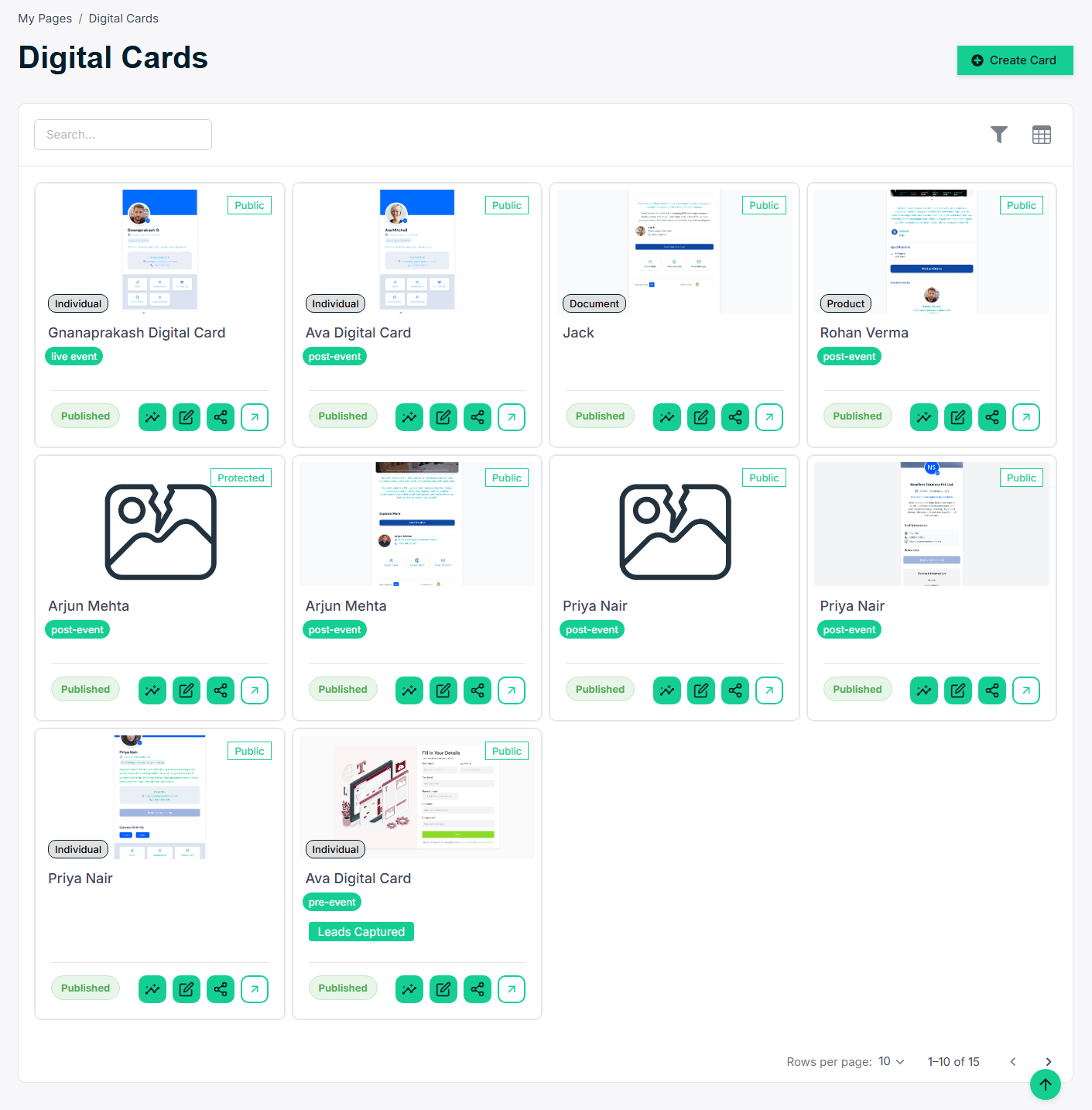 *▲ Digital Cards library — all cards with type, status, and lifecycle stage*
### 5.2 Creating a Digital Card
Click **+ Create Card**. First choose the card type:
*▲ Digital Cards library — all cards with type, status, and lifecycle stage*
### 5.2 Creating a Digital Card
Click **+ Create Card**. First choose the card type:
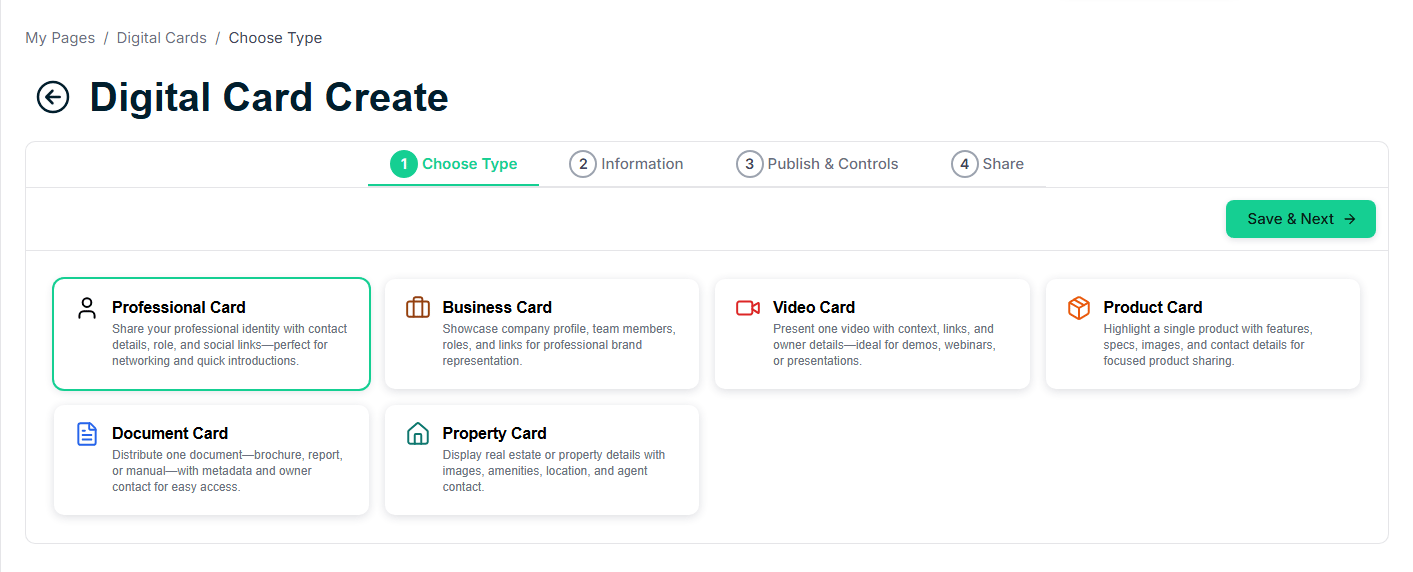 *▲ Choose card type — Individual, Business, Product, or Document*
After selecting a type, the card builder opens. Fill in contact info, company branding, bio, social links, and assets. Toggle the card between *Draft* and *Published* at any time.
### 5.3 Adding Assets to a Card
Assets are files or links attached to a card — PDF brochures, videos, image galleries, or URLs. In the card builder, scroll to Assets and click **Add Asset**:
1. Enter the asset title and description.
2. Choose type: File Upload, Link, or Video.
3. Upload the file or paste the URL.
4. Click **Save Asset**.
*▲ Choose card type — Individual, Business, Product, or Document*
After selecting a type, the card builder opens. Fill in contact info, company branding, bio, social links, and assets. Toggle the card between *Draft* and *Published* at any time.
### 5.3 Adding Assets to a Card
Assets are files or links attached to a card — PDF brochures, videos, image galleries, or URLs. In the card builder, scroll to Assets and click **Add Asset**:
1. Enter the asset title and description.
2. Choose type: File Upload, Link, or Video.
3. Upload the file or paste the URL.
4. Click **Save Asset**.
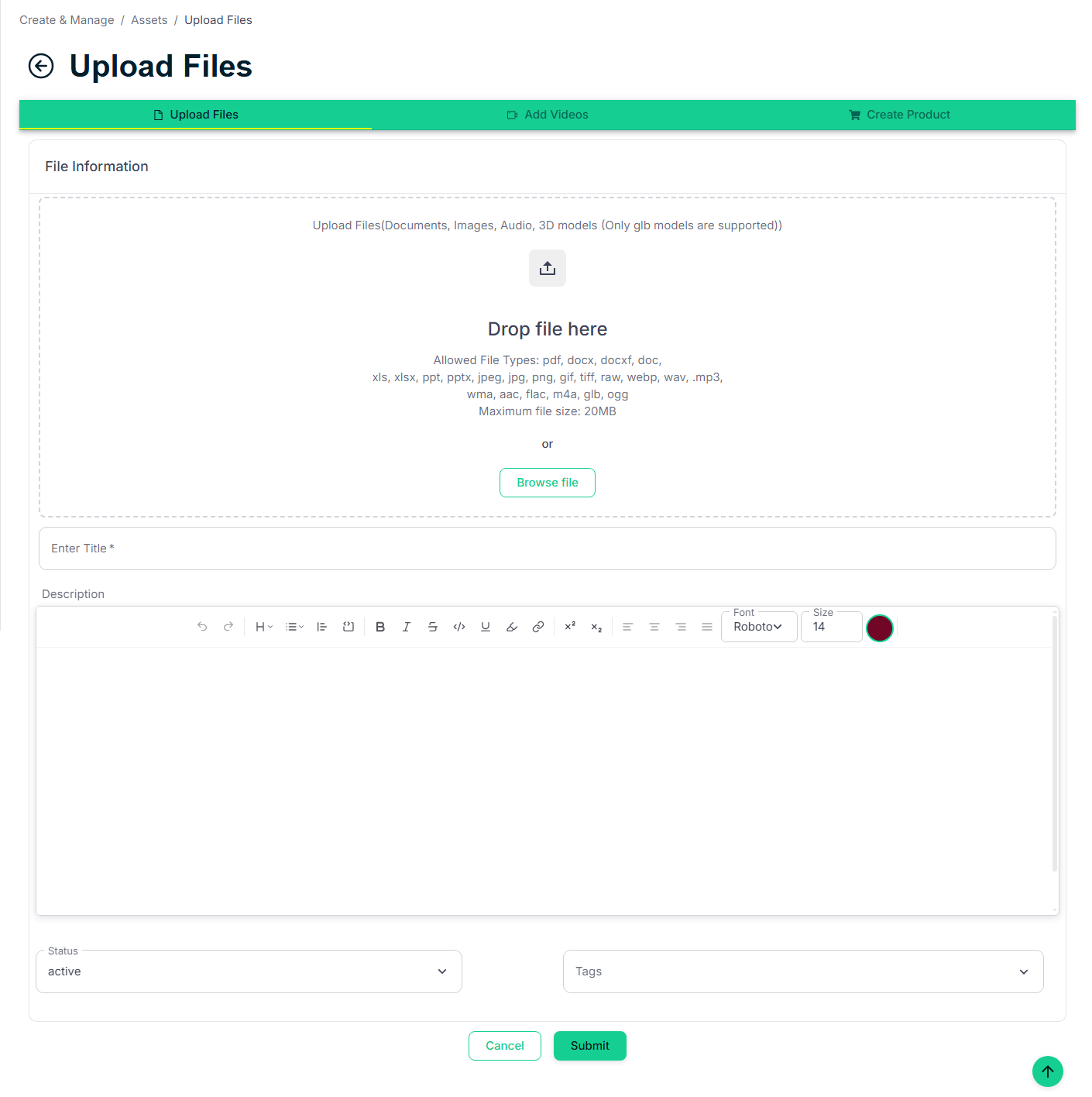 *▲ Add Asset form — attach files, links, or videos to your digital card*
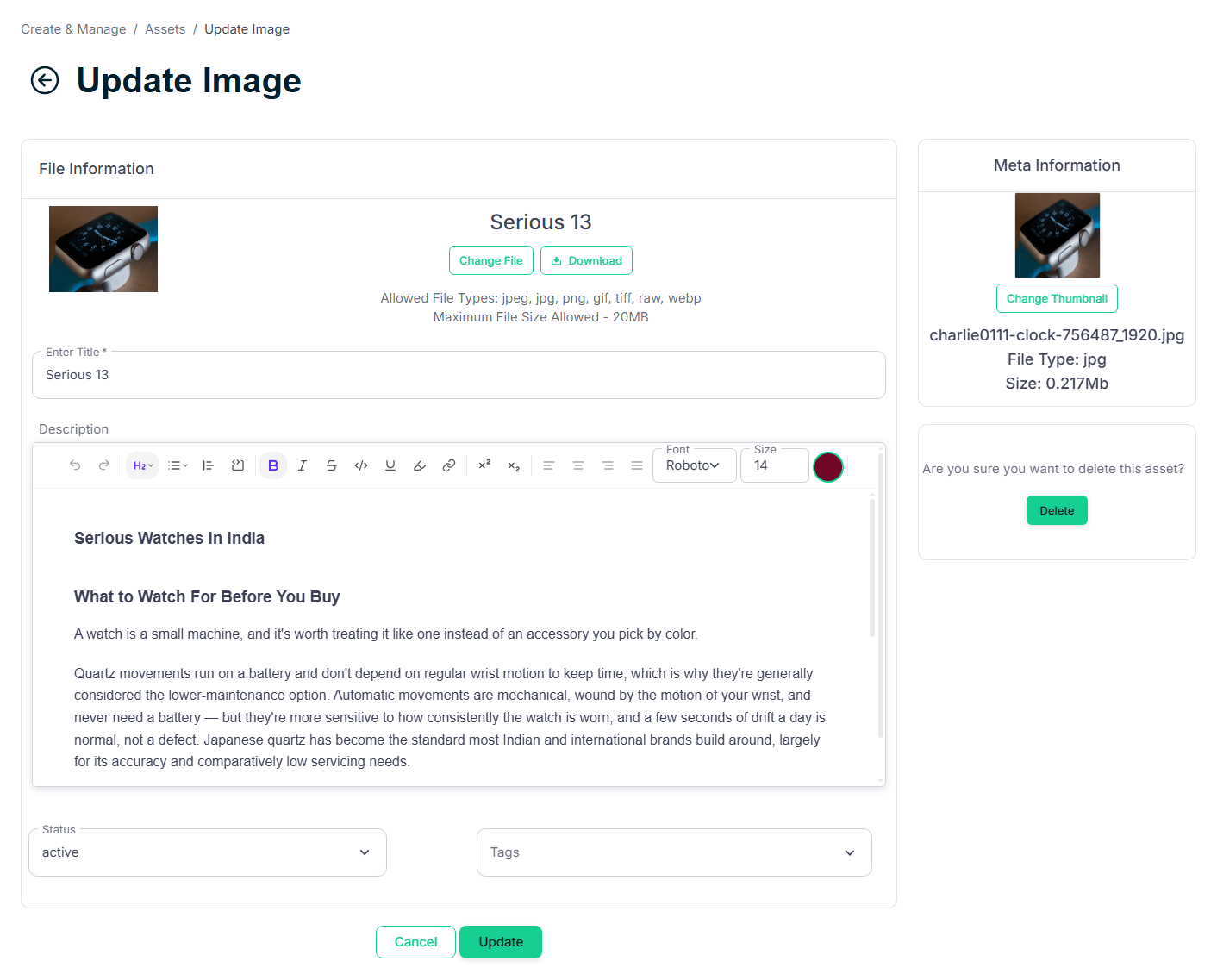 *▲ Update Asset — edit or replace any attached asset at any time*
***
This documentation is built and hosted on [Mintlify](https://mintlify.com), a developer documentation platform.
*▲ Update Asset — edit or replace any attached asset at any time*
***
This documentation is built and hosted on [Mintlify](https://mintlify.com), a developer documentation platform.