> ## Documentation Index
> Fetch the complete documentation index at: https://docs.boothmaven.com/llms.txt
> Use this file to discover all available pages before exploring further.
# Getting Started on the Mobile App
> Download the BoothMaven app for iOS and Android, sign in, and navigate key sections.
# Part C: Field Staff
Mobile App — iOS & Android
This part is for Field Staff who use the BoothMaven Mobile App on the show floor. The app is your primary tool during the event: capture leads, manage contacts, book meetings, and share digital content — all from your phone, even when internet is spotty.
**Download the app before the event:**
* 🍎 [Download on the App Store (iOS)](https://apps.apple.com/app/boothmaven) apps.apple.com/app/boothmaven
* 🤖 [Get it on Google Play (Android)](https://play.google.com/store/apps/boothmaven) play.google.com/store/apps/boothmaven
***
## Chapter 15: Getting Started on the Mobile App
### 15.1 Downloading the BoothMaven App
Install the BoothMaven app on your smartphone before the event. The app is available for both iOS and Android:
* 🍎 [Download on the App Store (iOS)](https://apps.apple.com/app/boothmaven) [https://apps.apple.com/app/boothmaven](https://apps.apple.com/app/boothmaven)
* 🤖 [Get it on Google Play (Android)](https://play.google.com/store/apps/boothmaven) [https://play.google.com/store/apps/boothmaven](https://play.google.com/store/apps/boothmaven)
You will need your login credentials from your Account Admin before you can sign in. Confirm your email and password are set up before the event.
### 15.2 Logging In
Open the app. Enter the email address and password provided by your Account Admin, then tap the green **LOGIN** button.
If your admin has set you up as a sub-user (a shared booth account), tap **Login as subuser** below the main button and enter the sub-user credentials instead.
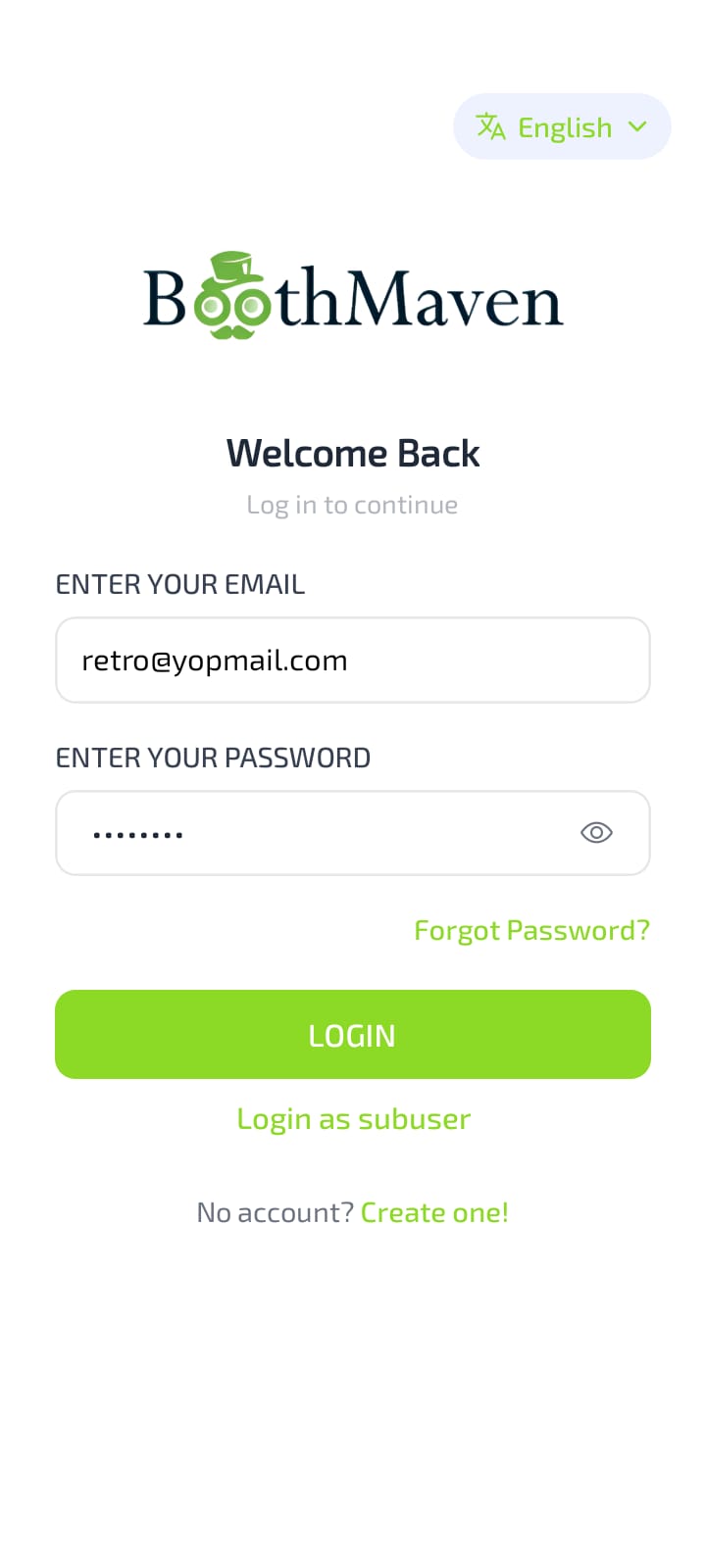 *▲ Login screen — enter your credentials or use sub-user login*
If you forget your password, tap **Forgot Password** on the login screen to receive a reset link by email.
The app language can be changed from the selector at the bottom of the login screen before you log in.
### 15.3 Navigating the App
Once logged in, the main navigation bar at the bottom has five tabs:
* **Capture** — Scan or manually enter leads.
* **Contacts** — View and manage all captured contacts.
* **Meetings** — Book and track all meetings.
* **Share** — Share your digital card, content, team cards, and microsites.
* **Stories** — Browse and share your company's stories.
Tap the menu icon (≡) at the top left for the side drawer: quick access to Contacts, Share, Stories, QR, Card Scanner, Settings, and Logout, plus summary tiles for Lists and Stories counts.
*▲ Login screen — enter your credentials or use sub-user login*
If you forget your password, tap **Forgot Password** on the login screen to receive a reset link by email.
The app language can be changed from the selector at the bottom of the login screen before you log in.
### 15.3 Navigating the App
Once logged in, the main navigation bar at the bottom has five tabs:
* **Capture** — Scan or manually enter leads.
* **Contacts** — View and manage all captured contacts.
* **Meetings** — Book and track all meetings.
* **Share** — Share your digital card, content, team cards, and microsites.
* **Stories** — Browse and share your company's stories.
Tap the menu icon (≡) at the top left for the side drawer: quick access to Contacts, Share, Stories, QR, Card Scanner, Settings, and Logout, plus summary tiles for Lists and Stories counts.
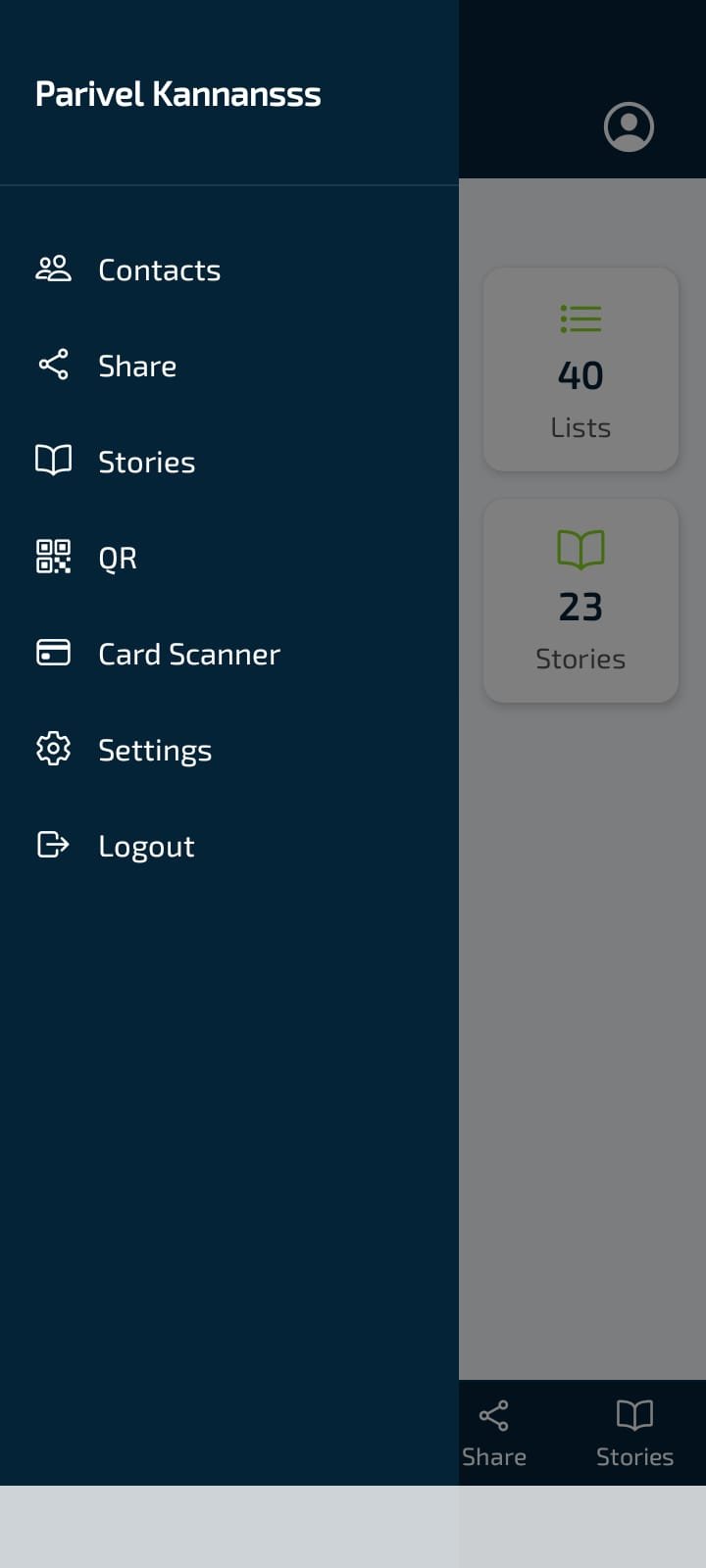 *▲ Side drawer — navigation, summary stats, and account settings*
The app works offline for lead capture and contact viewing. Changes made offline sync automatically once your phone reconnects to the internet.
***
This documentation is built and hosted on [Mintlify](https://mintlify.com), a developer documentation platform.
*▲ Side drawer — navigation, summary stats, and account settings*
The app works offline for lead capture and contact viewing. Changes made offline sync automatically once your phone reconnects to the internet.
***
This documentation is built and hosted on [Mintlify](https://mintlify.com), a developer documentation platform.