

BoothMaven HubSpot Integration Guide
Getting Started
BoothMaven provides a native HubSpot integration that can be connected through an OAuth authorization flow. The setup is designed to be completed without developer work. Before starting, make sure the BoothMaven user completing the connection has administrator access to both BoothMaven and HubSpot. The HubSpot account should allow the integration to read and update contacts, associate contacts with campaigns and Marketing Events, and write activities to contact timelines.Step 1 — Open HubSpot Settings
From the BoothMaven dashboard, open: Settings → HubSpot Select the HubSpot tab. In the HubSpot CRM section, select Connect HubSpot to start the OAuth connection.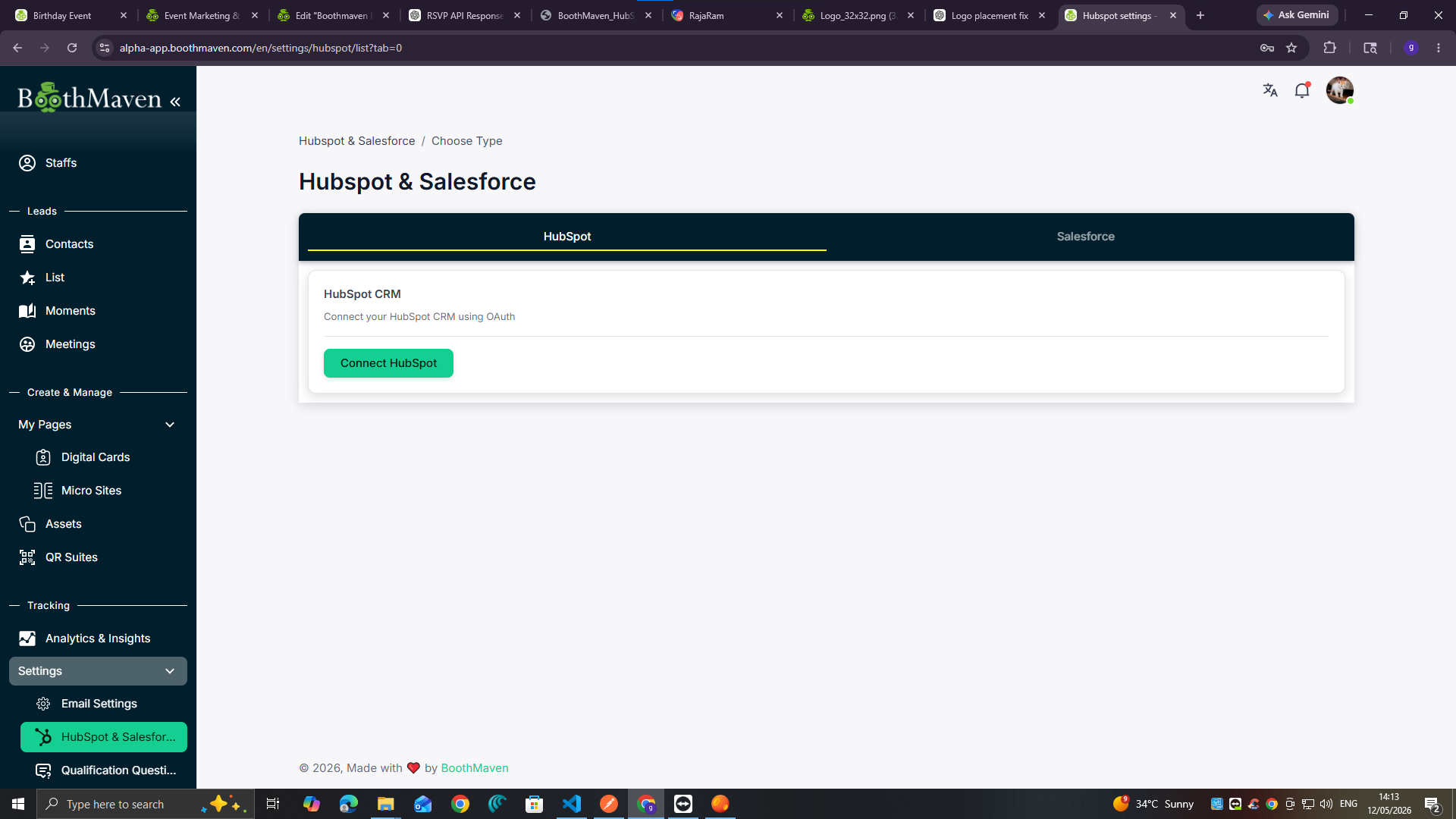
BoothMaven Settings → HubSpot → Connect HubSpot
Step 2 — Select Your HubSpot Account
After selecting Connect HubSpot, your browser opens HubSpot’s authorization page. Select the HubSpot portal you want to connect and choose Choose Account. If you manage multiple HubSpot portals, check the account information before continuing so the correct portal is connected.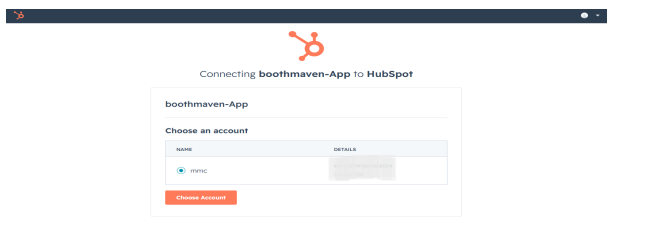
HubSpot OAuth → Select your account → Choose Account
Step 3 — Review Permissions and Connect
HubSpot will show the permissions requested by the BoothMaven app. Review the requested access and select Connect app. You may see an unverified app notice when the application is not listed in the HubSpot Marketplace. Review the authorization screen and continue only when the displayed app and requested permissions are the ones you expect.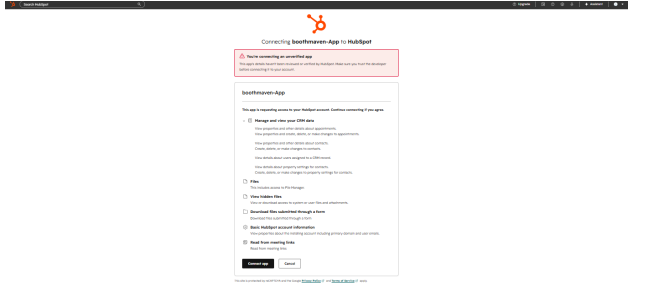
Review the permissions → Connect app
After Connecting
After the OAuth connection succeeds, the BoothMaven HubSpot settings page will show the HubSpot connection as active. With the integration connected:- Captured BoothMaven leads are automatically synchronized with HubSpot contacts.
- Existing contacts are updated seamlessly when matching email addresses are received.
- New contacts are created automatically when no matching contact exists.
- Contacts captured at events are automatically linked to the corresponding HubSpot Marketing Event.
Customizing the Contact Record View (Marketing Events & Qualification Questions)
To view synchronized event attendance and lead qualification answers directly on your contact records, add the Marketing events card and the BoothMaven Qualification Card to your HubSpot Contact record layout.1
Open any Contact Record
In your HubSpot portal, navigate to CRM → Contacts and click on any contact to open their record view.
2
Click Customize
In the top-right corner of the middle pane (next to the Activities tab), click the Customize (⚙️) button.
3
Select Default View
Click Default view (or Edit default view) to customize the record view layout for all users in your portal.
4
Add the Marketing Events Card
In the record customization editor:
- Locate the Right sidebar section.
- Click Add cards.
- Search for or select Marketing events.
- Check the Marketing events box to add it to the sidebar.
- (Optional) Drag the Marketing events card to the top of the right sidebar so it appears prominently above Companies and Deals.
5
Add the BoothMaven Qualification Questions Card
In the same record customization editor:
- Locate the Middle column (tabs section next to Overview / Activities).
- Click + Add tab (e.g., name it Qualification Questions) or select an existing tab.
- Click Add cards.
- Under Apps (BoothMaven), search for or select BoothMaven Qualification Card.
- Check the BoothMaven Qualification Card box to add it to the tab.
6
Save and Exit
In the top-right corner of the editor, click Save and exit to apply the configuration.
Viewing Synchronized Marketing Events on a Contact
Once saved, the right sidebar of every Contact record displays the Marketing events card with real-time participation details:- Event Name: The title of the event (e.g., Creative Design Workshop 2026).
- Hosted on: Displays the BoothMaven integration name (e.g., boothmaven-App-dev or boothmaven).
- Type: Event classification (e.g., TRADESHOW, CONFERENCE, SEMINAR).
- Registration status: Lead pre-registration state.
- Participation status: Real-time event check-in state (e.g., Attended).
- View more: Direct link to the complete event overview in HubSpot’s Marketing Events dashboard.
Viewing Qualification Questions & Answers on a Contact
Once saved, opening the Qualification Questions tab in the middle pane of any Contact record displays the BoothMaven Qualification card with:- Lead Score: The contact’s calculated BoothMaven lead score.
- Lead Label: The contact’s qualification tier (e.g., Hot, Warm, Cool).
- Lead Capture Qualification & Answers: Every configured qualification question (
Q1,Q2, …) paired with the contact’s recorded answer (A1,A2, …).
bm_qualification_data).)
Viewing All Events in HubSpot Marketing Events
You can also monitor overall booth performance, total captured leads, and attendee engagement across your entire organization:- In HubSpot, navigate to Marketing → Marketing Events (or search Marketing Events in the top search bar).
- Click on any event to view the event dashboard.
- Review total attendees, new contacts generated, check-in history, and build active HubSpot lists or automated marketing workflows for immediate post-event nurturing.
HubSpot Permissions
During authorization, BoothMaven requests access for the following areas:- CRM Contacts & Marketing Events — read and write supported CRM contact records, appointments, and native Marketing Events.
- Files — access supported files in the HubSpot File Manager.
- Hidden files & form uploads — access supported system attachments and badge scan uploads.
- Basic account information — access information such as portal ID, primary domain, and user email.
- Meeting links — read HubSpot meeting-link information for booth demo scheduling.
Quick Setup Checklist
Before finishing the setup, verify:- You have administrator access in BoothMaven.
- You have the required administrator permissions in HubSpot.
- You selected the correct HubSpot portal.
- You reviewed the OAuth permissions.
- BoothMaven shows the HubSpot connection as active.
- You customized the Contact record right sidebar to display the Marketing events card.
- A test contact can be captured and verified in HubSpot with its associated Marketing Event.
If the connection does not complete successfully, return to the BoothMaven
integration settings and reconnect the HubSpot account. For assistance, reach
out to our support team at [email protected].