
Chapter 8: Meetings (Web)
The Meetings section tracks all scheduled interactions between your team and leads — booked on the floor, before the event, or through a public booking link.8.1 The Meetings Dashboard
Navigate to Leads → Meetings. The grid view shows all meetings with status badge (Scheduled, Done, Rescheduled, Cancelled, No Show), title, date/time, duration, format, location, outcome, and contact(s). Use filter tabs and event/date dropdowns to narrow the view.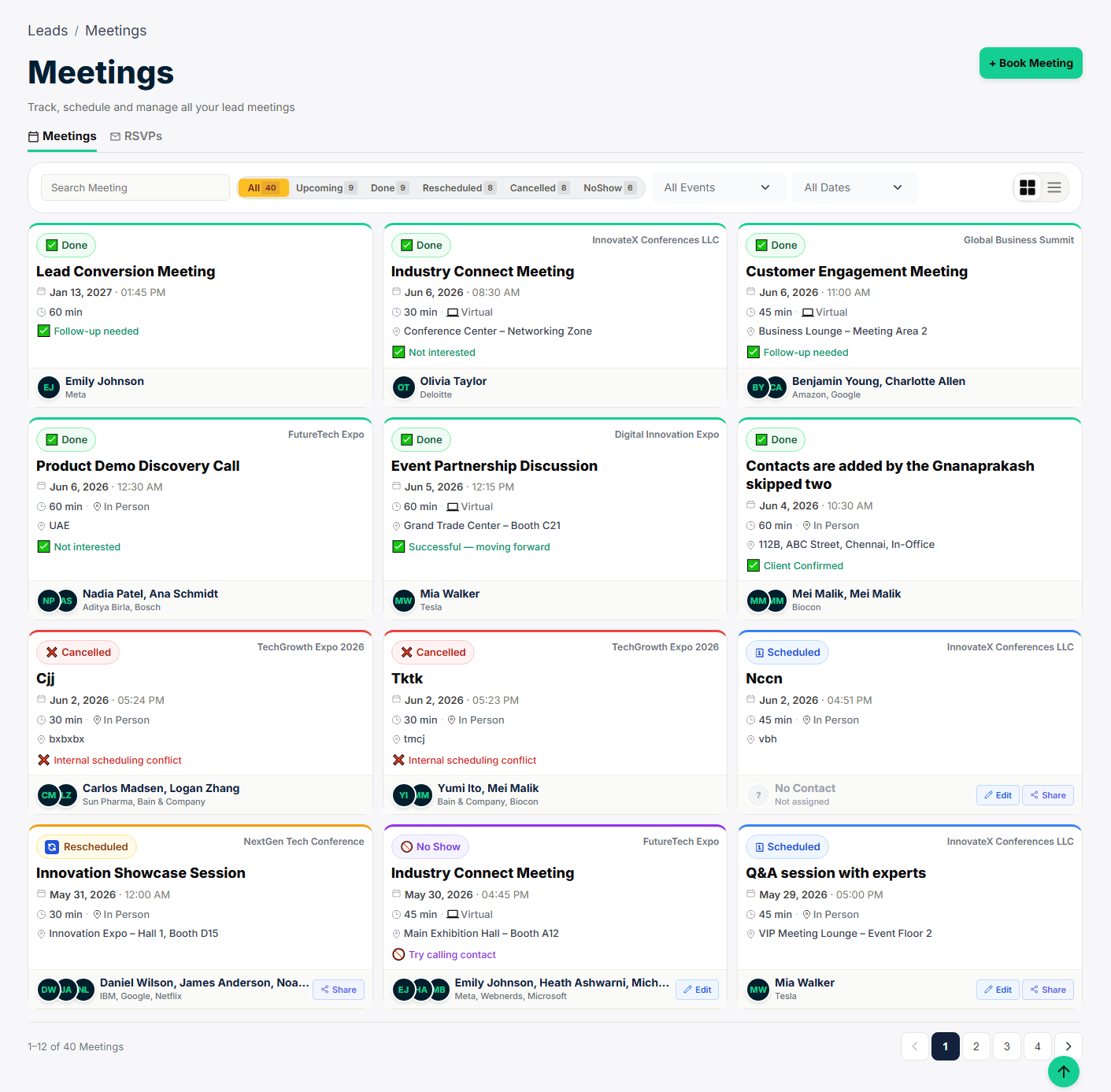
8.2 Booking a Meeting (Web)
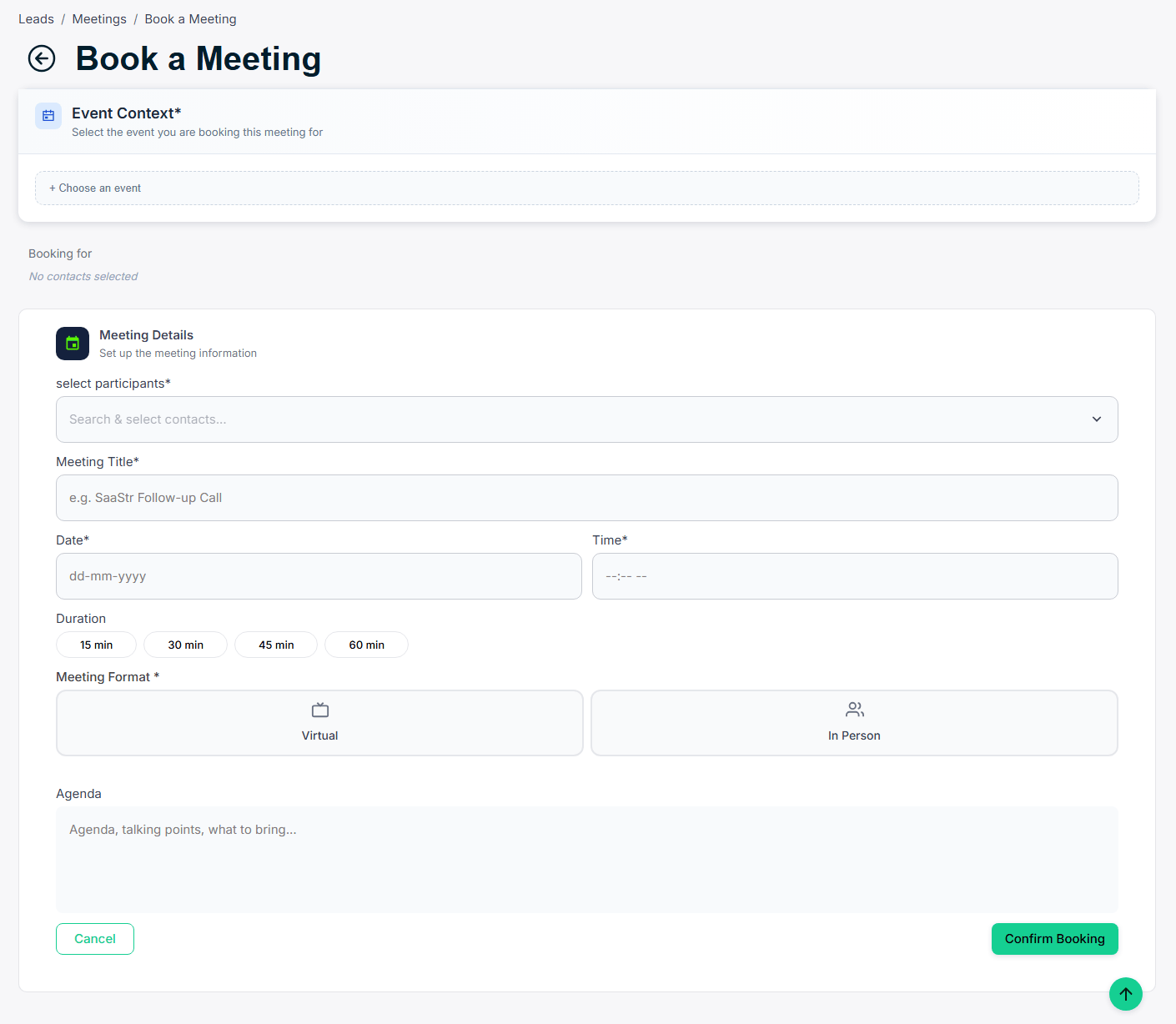
Click + Book Meeting:- Meeting Title — e.g. “Product Demo” or “Follow-up Call”.
- Contact — Select the contact (multiple contacts can be linked to one meeting).
- Date & Time — Select the scheduled date and start time.
- Duration — 15 min, 30 min, 45 min, or 60 min.
- Type — In-Person or Virtual.
- Location — Room, booth number, or video call link.
- Click Save. A meeting invitation is emailed to the contact automatically.