

BoothMaven HubSpot Integration Guide
Getting Started
BoothMaven provides a native HubSpot integration that can be connected through an OAuth authorization flow. The setup is designed to be completed without developer work. Before starting, make sure the BoothMaven user completing the connection has administrator access to both BoothMaven and HubSpot. The HubSpot account should allow the integration to read and update contacts, associate contacts with campaigns, and write activities to contact timelines.Step 1 — Open HubSpot Settings
From the BoothMaven dashboard, open: **Settings → HubSpot ** Select the HubSpot tab. In the HubSpot CRM section, select Connect HubSpot to start the OAuth connection.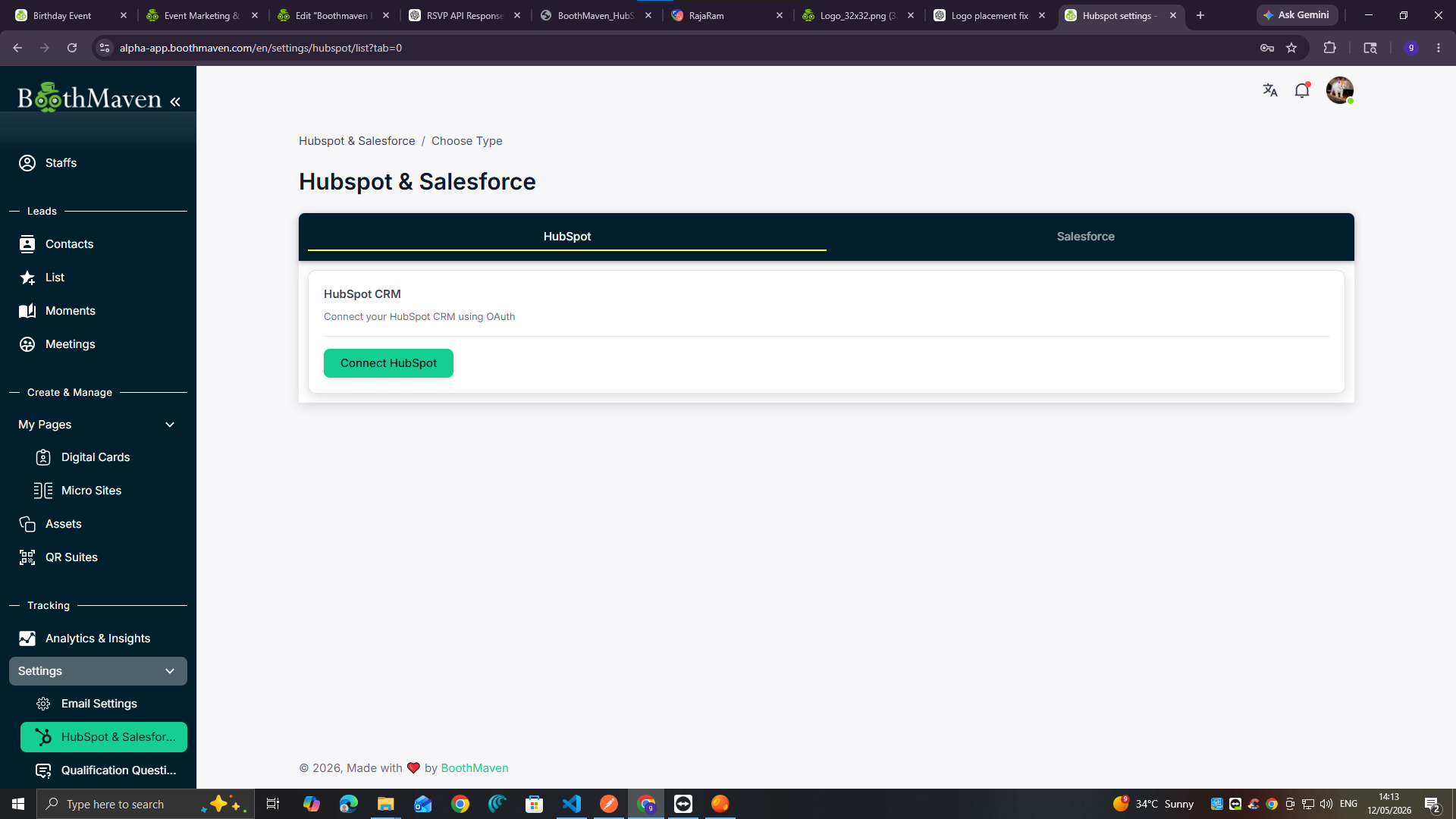
BoothMaven Settings → HubSpot → Connect HubSpot
Step 2 — Select Your HubSpot Account
After selecting Connect HubSpot, your browser opens HubSpot’s authorization page. Select the HubSpot portal you want to connect and choose Choose Account. If you manage multiple HubSpot portals, check the account information before continuing so the correct portal is connected.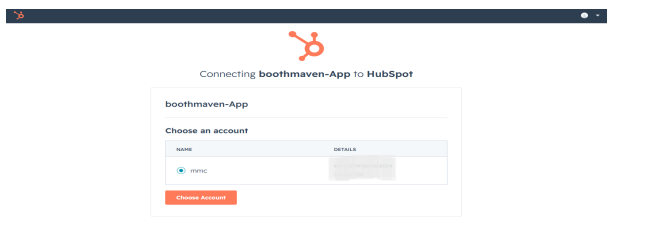
HubSpot OAuth → Select your account → Choose Account
Step 3 — Review Permissions and Connect
HubSpot will show the permissions requested by the BoothMaven app. Review the requested access and select Connect app. You may see an unverified app notice when the application is not listed in the HubSpot Marketplace. Review the authorization screen and continue only when the displayed app and requested permissions are the ones you expect.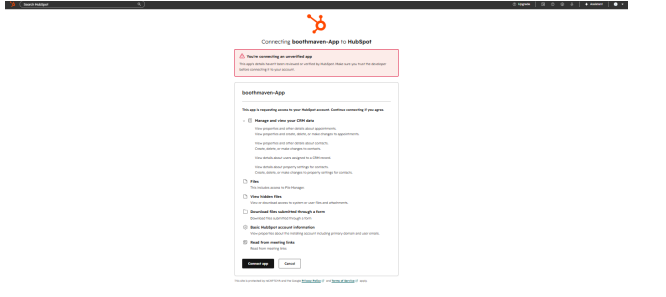
Review the permissions → Connect app
After Connecting
After the OAuth connection succeeds, the BoothMaven HubSpot settings page should show the HubSpot connection as active. With the integration connected:- Captured BoothMaven leads can be synchronized with HubSpot contacts.
- Existing contacts can be updated when matching data is received.
- New contacts can be created automatically when no matching contact exists.
HubSpot Permissions
During authorization, BoothMaven may request access for the following areas:- CRM data — read and write supported CRM records and properties.
- Files — access supported files in the HubSpot File Manager.
- Hidden files — access supported system files and attachments.
- Form-submitted files — access files submitted through supported forms.
- Basic account information — access information such as the primary domain and user email.
- Meeting links — read HubSpot meeting-link information.
Quick Setup Checklist
Before finishing the setup, verify:- You have administrator access in BoothMaven.
- You have the required administrator permissions in HubSpot.
- You selected the correct HubSpot portal.
- You reviewed the OAuth permissions.
- BoothMaven shows the HubSpot connection as active.
- A test contact can be captured and verified in HubSpot.
If the connection does not complete successfully, return to the BoothMaven
integration settings and reconnect the HubSpot account after verifying the
selected portal and authorization permissions.