

Part C: Field Staff
Mobile App — iOS & Android This part is for Field Staff who use the BoothMaven Mobile App on the show floor. The app is your primary tool during the event: capture leads, manage contacts, book meetings, and share digital content — all from your phone, even when internet is spotty. Download the app before the event:- 🍎 Download on the App Store (iOS) apps.apple.com/app/boothmaven
- 🤖 Get it on Google Play (Android) play.google.com/store/apps/boothmaven
Chapter 15: Getting Started on the Mobile App
15.1 Downloading the BoothMaven App
Install the BoothMaven app on your smartphone before the event. The app is available for both iOS and Android:- 🍎 Download on the App Store (iOS) https://apps.apple.com/app/boothmaven
- 🤖 Get it on Google Play (Android) https://play.google.com/store/apps/boothmaven
You will need your login credentials from your Account Admin before you can sign in. Confirm your email and password are set up before the event.
15.2 Logging In
Open the app. Enter the email address and password provided by your Account Admin, then tap the green LOGIN button. If your admin has set you up as a sub-user (a shared booth account), tap Login as subuser below the main button and enter the sub-user credentials instead.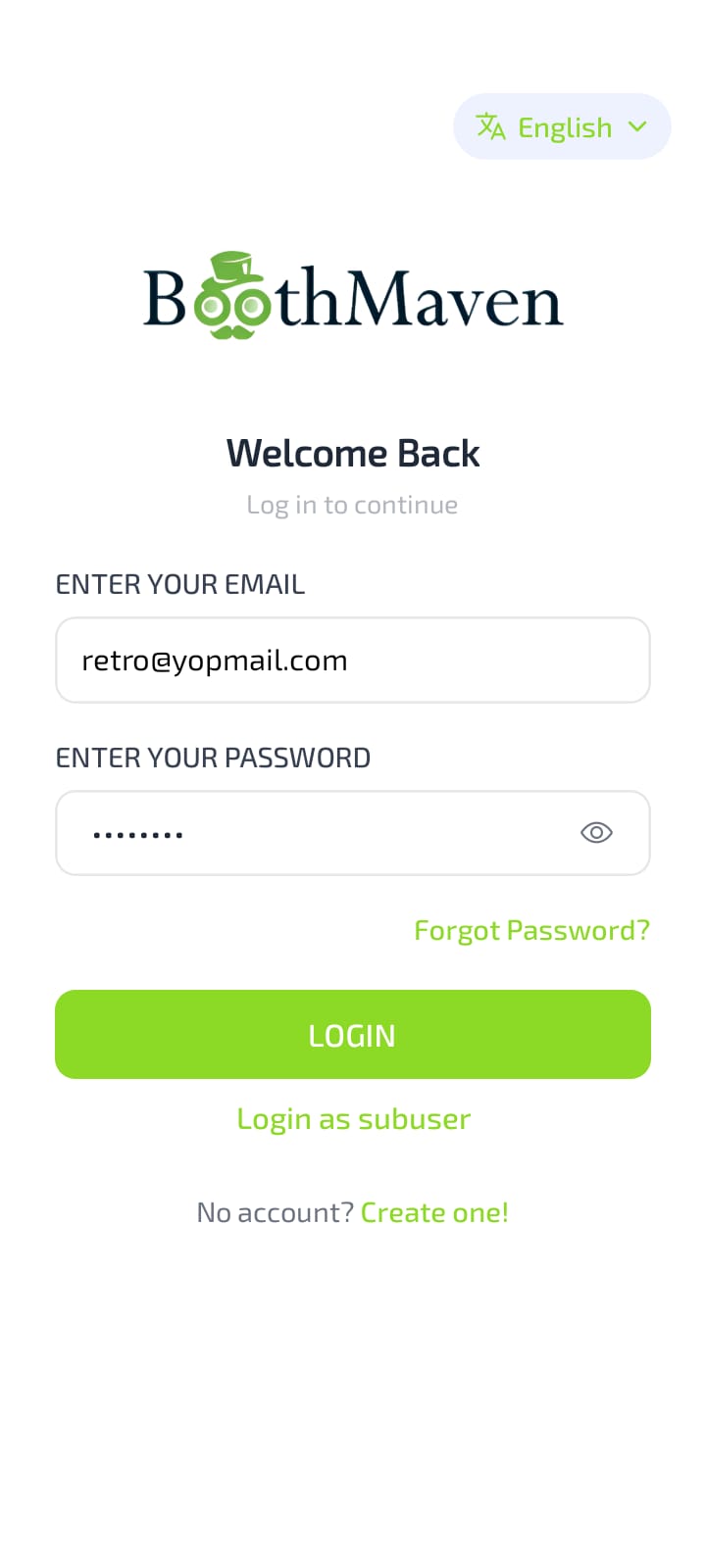
The app language can be changed from the selector at the bottom of the login screen before you log in.
15.3 Navigating the App
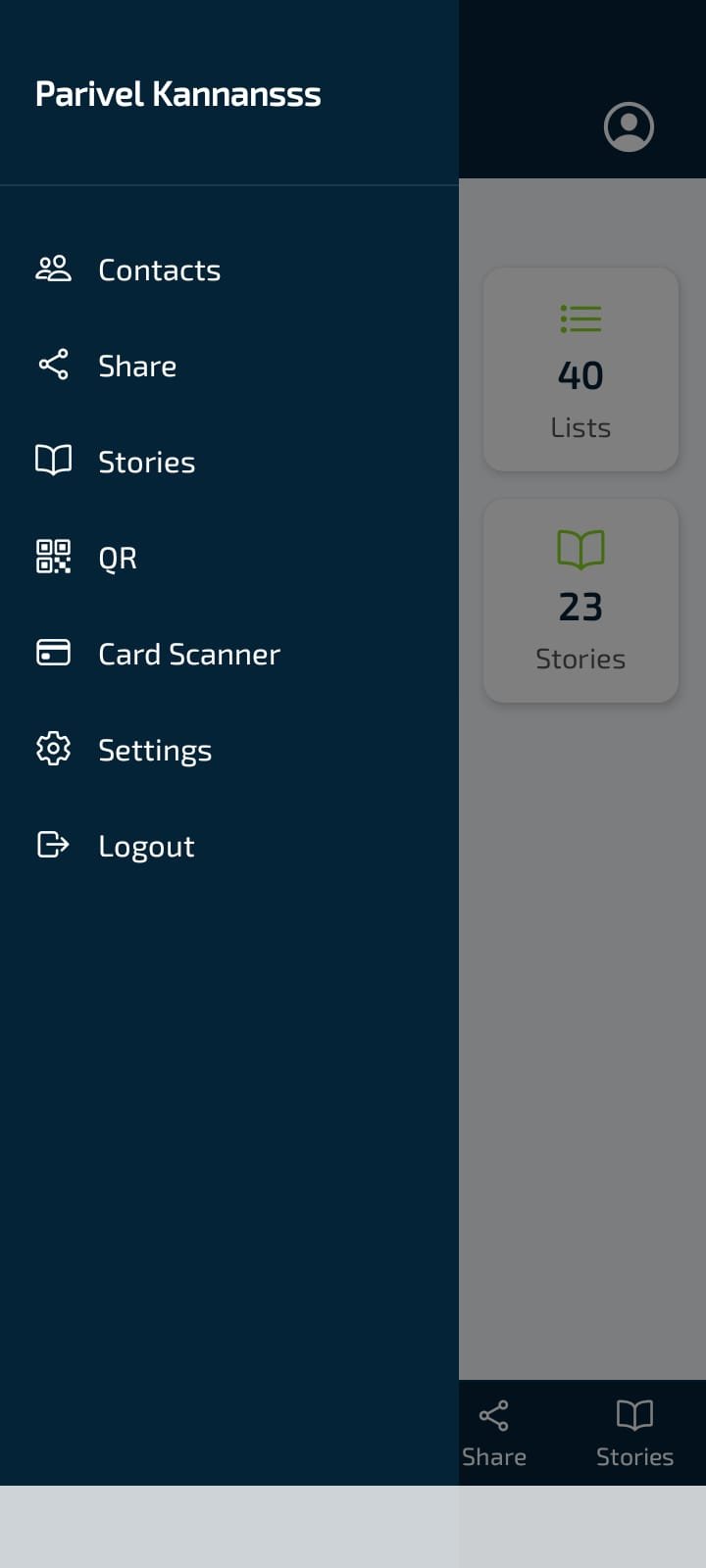
Once logged in, the main navigation bar at the bottom has five tabs:- Capture — Scan or manually enter leads.
- Contacts — View and manage all captured contacts.
- Meetings — Book and track all meetings.
- Share — Share your digital card, content, team cards, and microsites.
- Stories — Browse and share your company’s stories.
The app works offline for lead capture and contact viewing. Changes made offline sync automatically once your phone reconnects to the internet.