
Chapter 16: Capturing Leads
The Capture screen is the heart of the mobile app. Tap the Capture tab. At the top, confirm the active event name and booth number match the show you’re attending. BoothMaven offers three capture methods: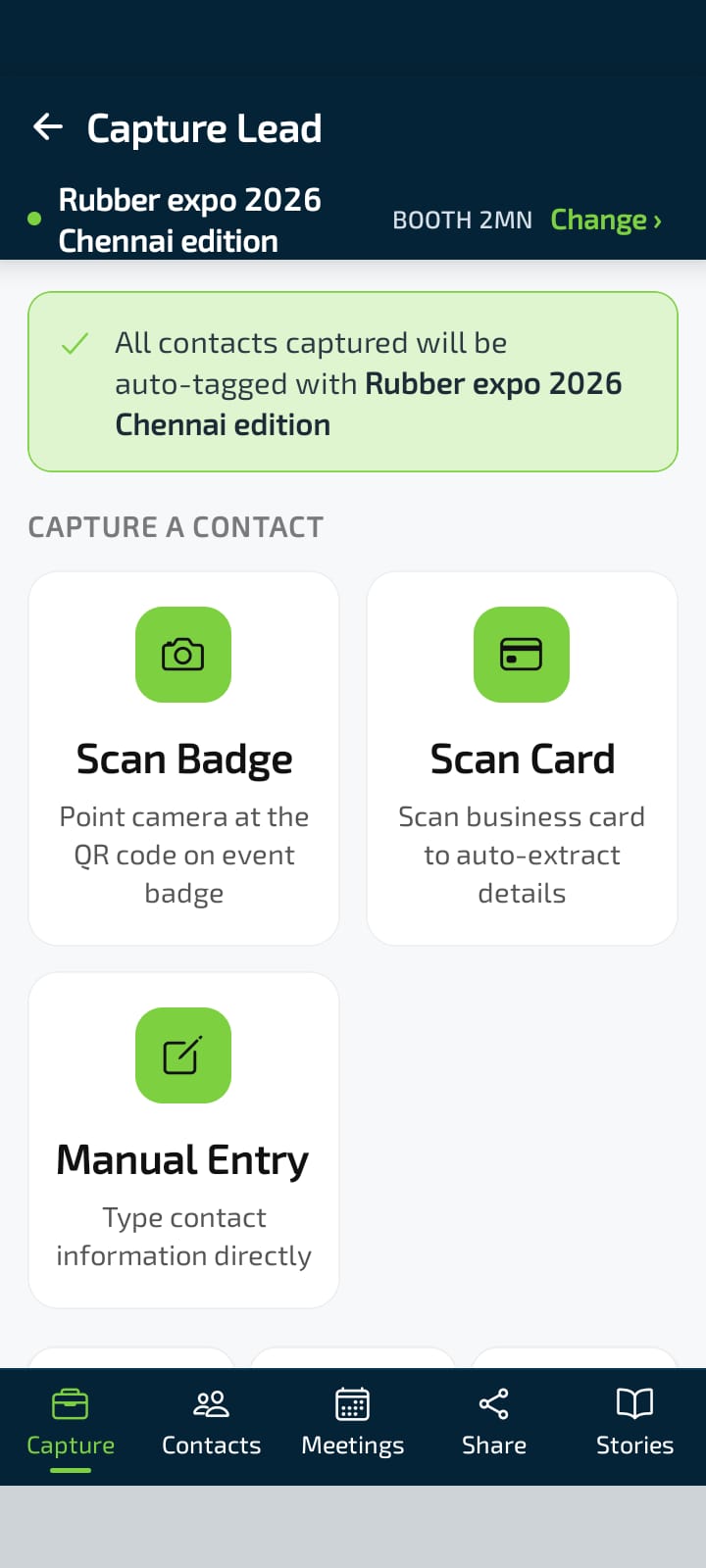
16.1 Scanning a Badge (QR Code)
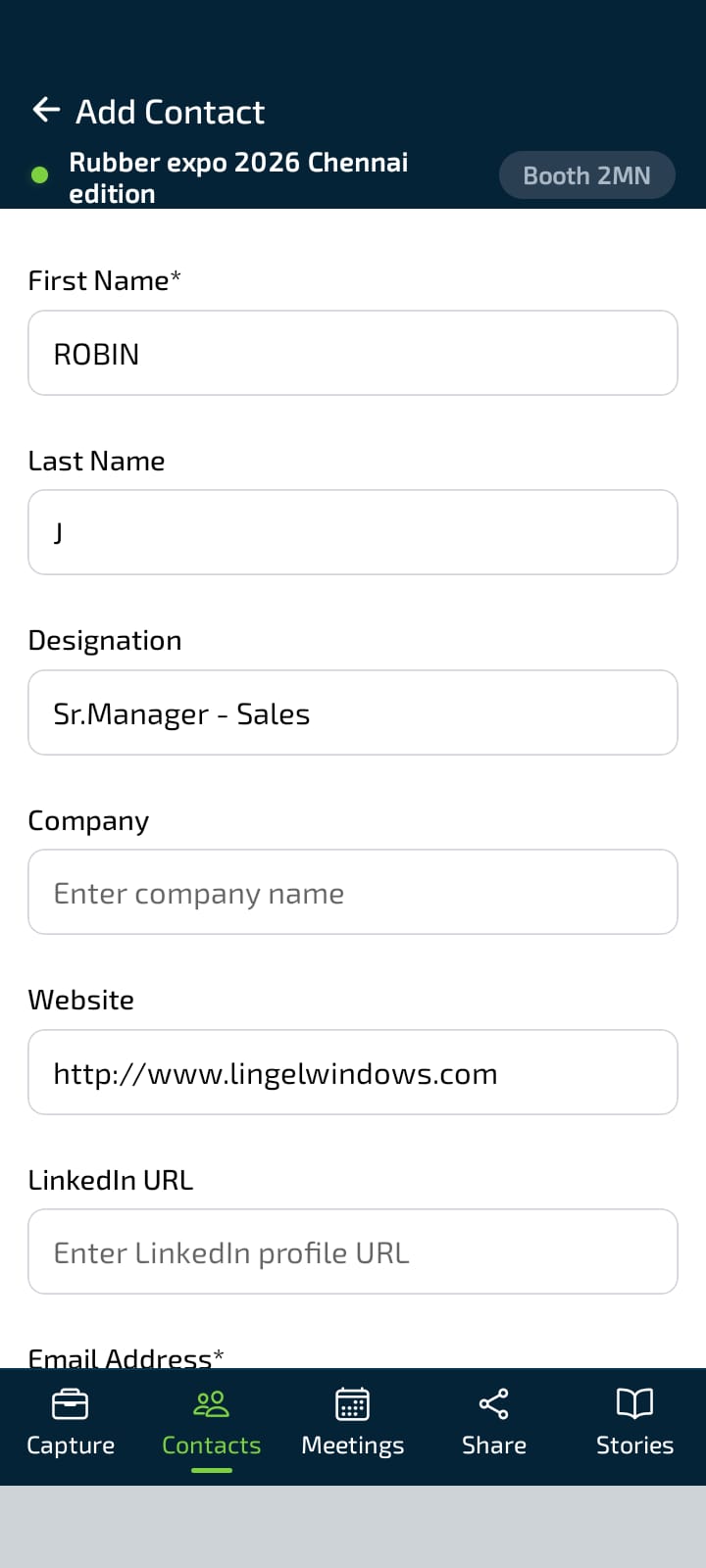
Most trade shows print a QR code on each attendee’s badge. Tap Scan Badge. The camera activates and reads the badge QR code instantly, pre-filling the Add Contact form. Review the details, correct any errors, and tap Save. If qualification questions are configured, they appear on the next screen. Answer them immediately or skip to come back later from the contact profile.16.2 Scanning a Business Card
Tap Scan Card. The camera opens with a green alignment frame. Hold the business card flat, align it within the green corners, and keep your hand steady. The app uses OCR to read the card text.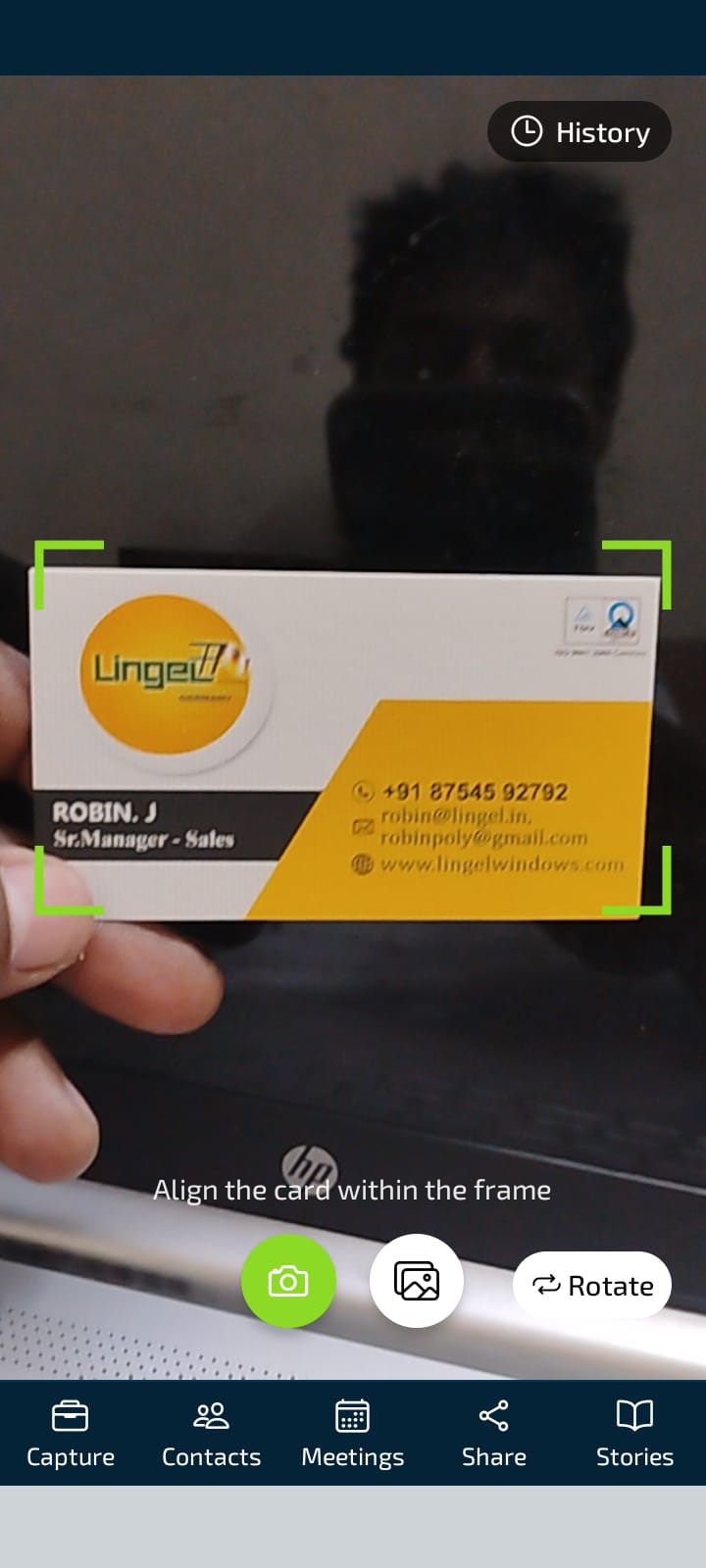
The History button on the Card Scanner screen shows previous scans so you can review and re-save a card scanned earlier.
16.3 Manual Entry
Tap Manual Entry when neither a badge QR code nor a business card is available. Fill in the lead’s details directly — at minimum a name and either a phone number or email address.16.4 QR Scan History
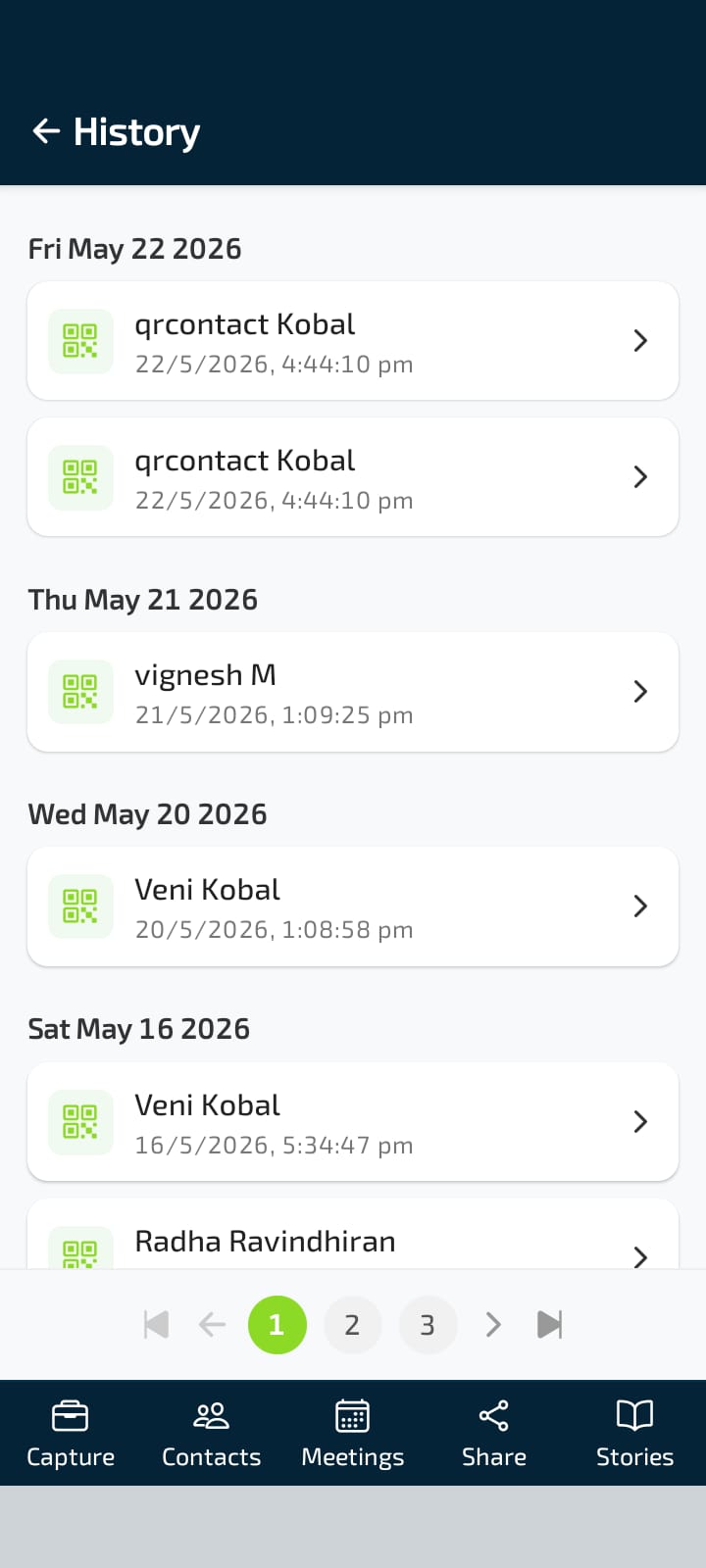
Every badge or QR code you scan is logged. Access it from Menu → QR or from the History button on the Capture screen. The history is organised by date with contact name, date, and time. Tap any entry to view the contact it created.